
Connect Propstack CRM with BOTTIMMO
1) Create an API key in Propstack
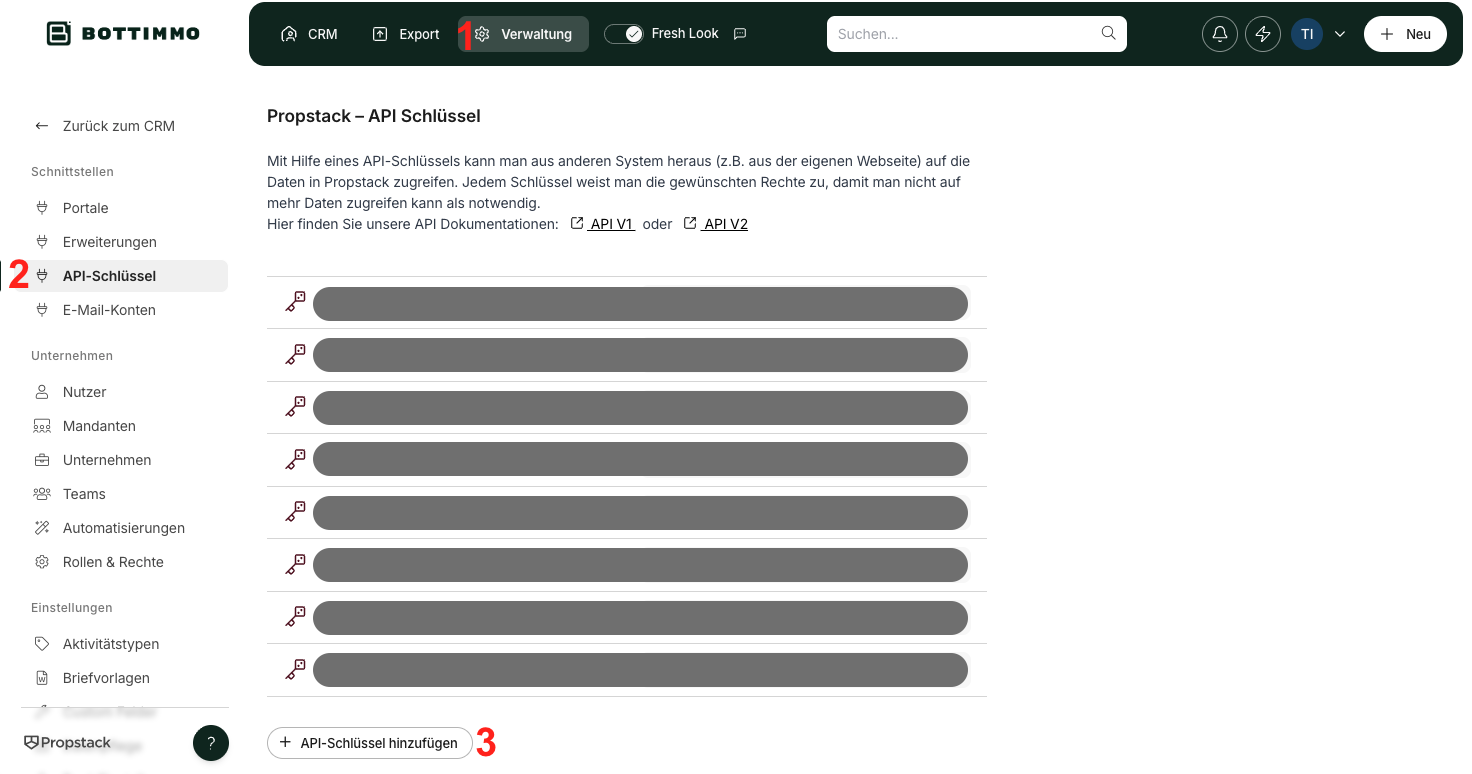
To connect the two systems and ensure secure data transfer, first create an API key by opening your Propstack at the following page: https://crm.propstack.de/app/admin/api_keys
- Click “Add API key”
- Enter BOTTIMMO as the name
- An access key will be generated for you
- Copy it to your clipboard
💡 Note: Propstack also provides information on setting up the connection in its own help centre.
2) Enter the API key in BOTTIMMO
- Now open BOTTIMMO
- Select the Connection Manager area on the left in the navigation
- Click Connect in the Propstack tile
- Then follow the instructions in the connection assistant.
Synchronisation of contact data with Propstack
Four different synchronisation modes are available for the connection between BOTTIMMO and Propstack. This allows you to decide how your contact data is transferred.
1. Manual export only
Each contact is exported individually from the contact detail page in BOTTIMMO to Propstack.
There is no automatic data exchange.
No contacts are imported from Propstack into BOTTIMMO.
This mode is suitable if you want to retain full control over each individual export.
2. Automatic export to CRM only
All newly generated contacts in BOTTIMMO are automatically transferred to Propstack.
No import from Propstack takes place.
This mode ensures that new leads are stored directly in your CRM (Customer Relationship Management system).
3. Automatic import from the CRM only
Contacts are automatically imported from Propstack into BOTTIMMO.
Export from BOTTIMMO to Propstack takes place manually only.
This mode is suitable if Propstack is your central data source and BOTTIMMO is used as a complementary system.
4. Automatic import and export
In this mode, a fully automatic data exchange takes place in both directions.
All contacts remain synchronised between Propstack and BOTTIMMO automatically.
Data authority always remains with the CRM.
This means: BOTTIMMO does not overwrite or delete any data in Propstack. Only missing information is added.
This mode offers the highest level of convenience and ensures permanently up-to-date contact data in both systems.
Which contacts are synchronised?
⚠️ Important: Only contacts with GDPR status and “may be contacted” are synchronised.
Why? In BOTTIMMO, the focus is purely on contacting people. Without permission, working with this contact in BOTTIMMO is not legally permitted.
If the two fields in Propstack are not maintained, you can also edit multiple contacts at once and add the status. Here is a Propstack help article about this: Go to the article.
In Propstack, a status can be assigned to each contact. In the BOTTIMMO CRM settings, each customer selects which contact statuses should be synchronised and which should not.
Can the synchronisation be stopped again?
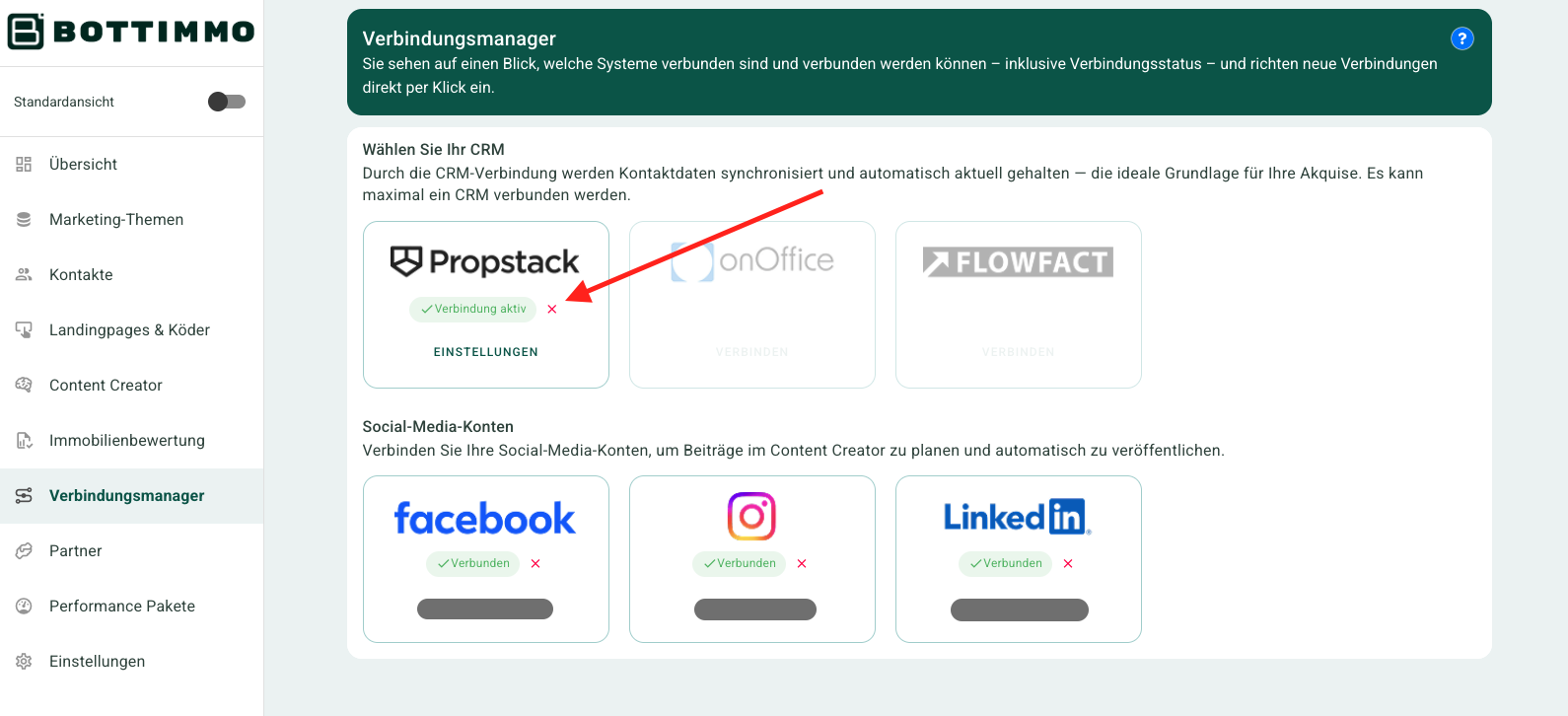
Yes, the connection can be disconnected in the Propstack tile within the Connection Manager.
What happens if synchronisation is stopped?
From that moment on, no further data will be transferred between Propstack and BOTTIMMO. Synchronisation can be stopped and restarted at any time with a single click.
What data is synchronised exactly?
When you connect BOTTIMMO with Propstack, a lot of information is exchanged automatically. This means you do not need to enter data twice and you can keep track of all contacts and activities directly in the Propstack contact. Here you will find a clear overview of what is transferred.
1. Contact data from BOTTIMMO to Propstack
BOTTIMMO creates a new contact in Propstack or supplements existing data. The following is transferred:
- First name
- Surname
- Email address
- Landline number (if available)
- Mobile number (only if it is a mobile number)
- Consent to be contacted (GDPR)
- GDPR status
- Follow-up date from BOTTIMMO
- A special custom field “bottimmo” (if it exists in Propstack, it is filled with a link to BOTTIMMO)
- The contact source, matching the platform
- An indication that this is not a company
💡 If values in the lead change (e.g. telephone number or name), these changes are also transferred.
2. Activities and notes for each conversion
A “conversion” is an action the prospect performs. Examples: starting a valuation, downloading something, or requesting a callback.
For each conversion, BOTTIMMO automatically creates a task in Propstack. This includes:
- A title (e.g. name of the landing page or type of action)
- A description
- Date and time of the action
- The name of the platform or your company
3. Transferred data depending on the conversion
Depending on the type of action, different information is stored. Here is the easy-to-understand overview:
- Property valuation
- Property type
- Address
- Price range (minimum, maximum, average)
- Whether the valuation was automated or manual
- Titles such as “Valuation completed”
- Description including address and price information
- Callback request
- Preferred callback time
- Topic of the callback (e.g. pricing or inheritance)
- Title: “Requested a callback”
- Description including time and topic
- Download (checklist or guide)
- Type of download
- Whether postal delivery is requested
- Matching title for the download
- Delivery note
- Lifetime annuity check
- Property type
- Title and short description
- Partial sale check
- Property type
- Title and short description
- Property search request (Dream Home Finder)
- Property type and subtype
- Area and radius
- Minimum and maximum price
- Title: “Submitted a purchase request”
- Description including all search details
- Land valuation
- Type of land
- Title: Land valuation requested
- Description including land type
4. Property data in Propstack (for valuations)
For a property valuation, property data can also be transferred:
- Plot size
- Living area
- Number of rooms
- Floor
- Year of construction
- Marketing type (always “Purchase”)
- Property type and category
- Address
- Geo-coordinates (if available)
5. Search profiles in Propstack (for Dream Home Finder)
If a prospect submits a search request, BOTTIMMO creates a search profile in Propstack. This includes:
- Marketing type (always “Purchase”)
- Price range
- Property types and categories (as lists)
- Minimum number of rooms and bathrooms
- Whether a parking space is required
- Details such as balcony or garden (only if requested)
- Accessibility (if requested by the prospect)
- Location via coordinates plus search radius
- Additional notes from the prospect (e.g. living situation or preferences)
6. General lead data
As a rule, some basic information from BOTTIMMO is always included:
- Lead ID
- Company ID
- Lead email address
- Lead status
7. Additional transferred data
BOTTIMMO also transfers:
- All conversions of the lead (including landing page names)
- All related notes and activities