
Connect Empro CRM
Purpose of the connection
After setup, contacts between Bottimmo and Empro will be synchronized.
Synchronization means:
Data is automatically matched and kept up-to-date between two systems.
Step-by-step guide
1. Open Connection Manager
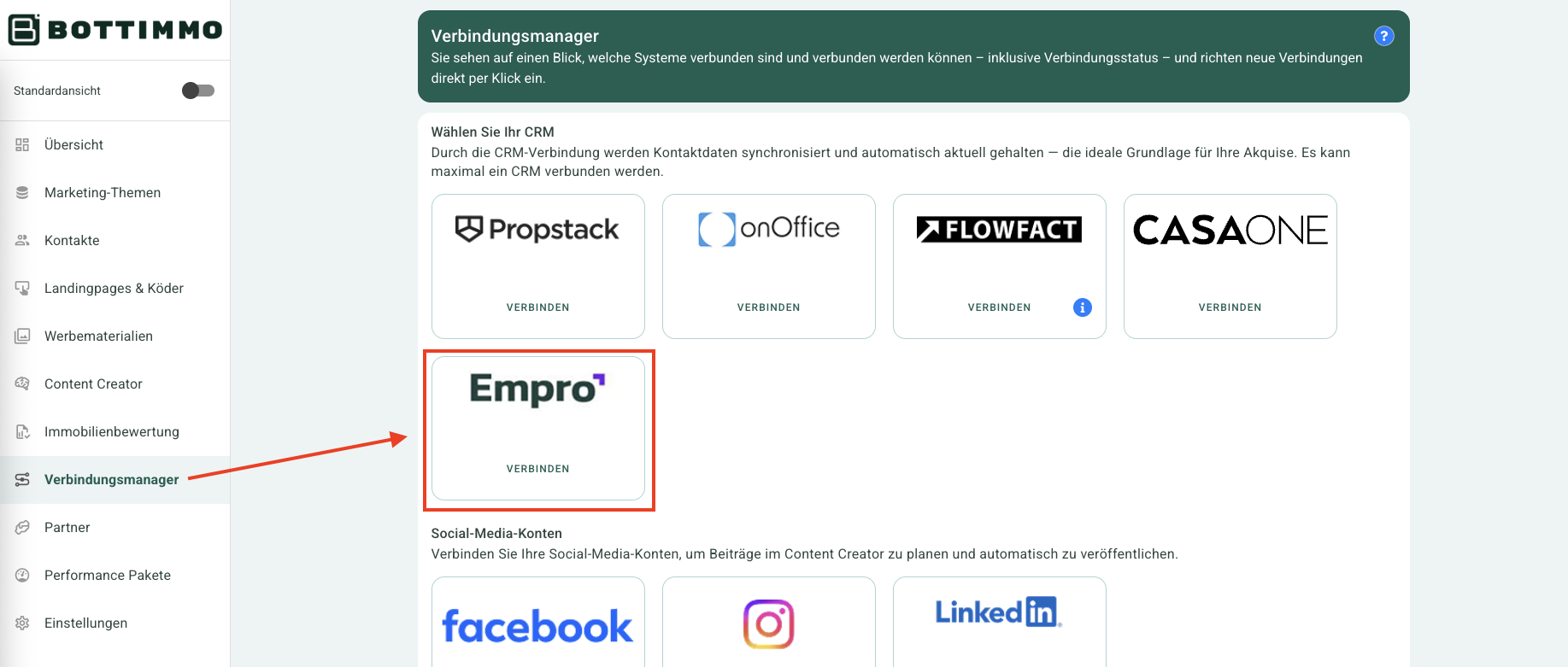
- On the left in the navigation bar in BOTTIMMO, you will find the Connection Manager
- Open it by clicking.
- In the CRM section, you will find Empro as a separate tile.
2. Start connection
- In the Empro tile, click on "Connect"
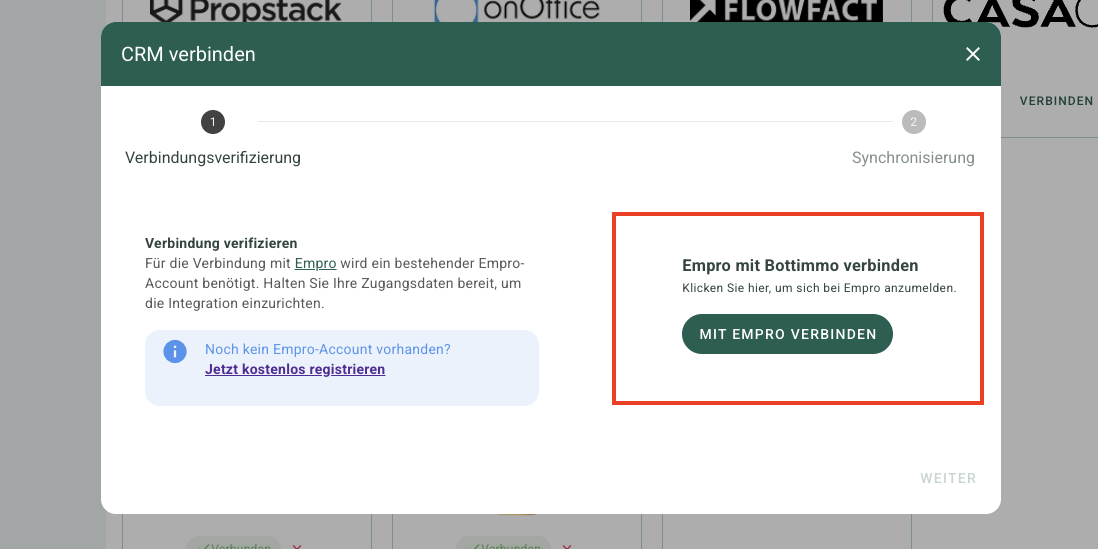
- An assistant (guided setup) will open and guide you through the next steps:
3. Verify connection
- In the assistant, click on "Connect with Empro" on the right.
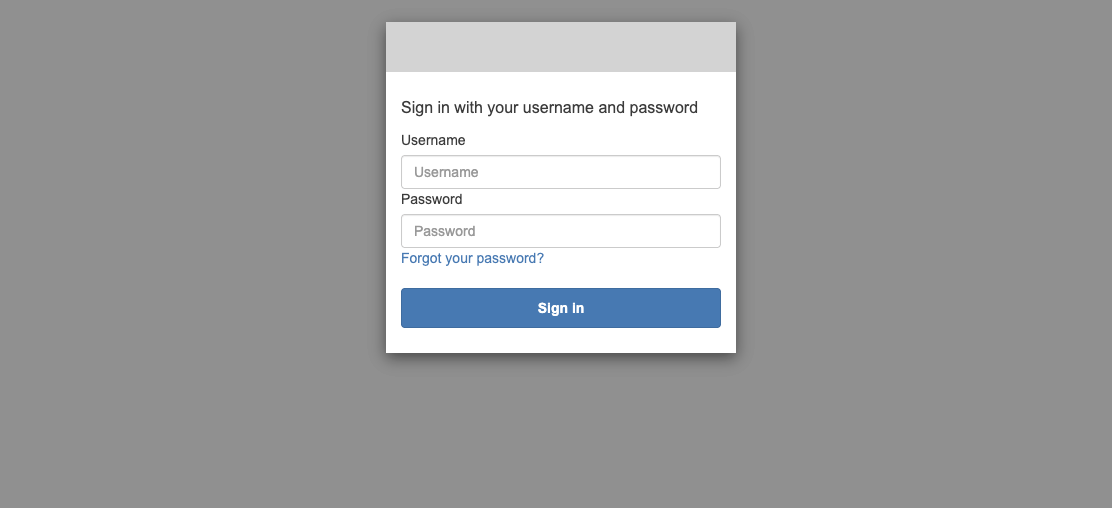
- You will be automatically redirected to an Empro login form.
- Log in with your Empro access data.
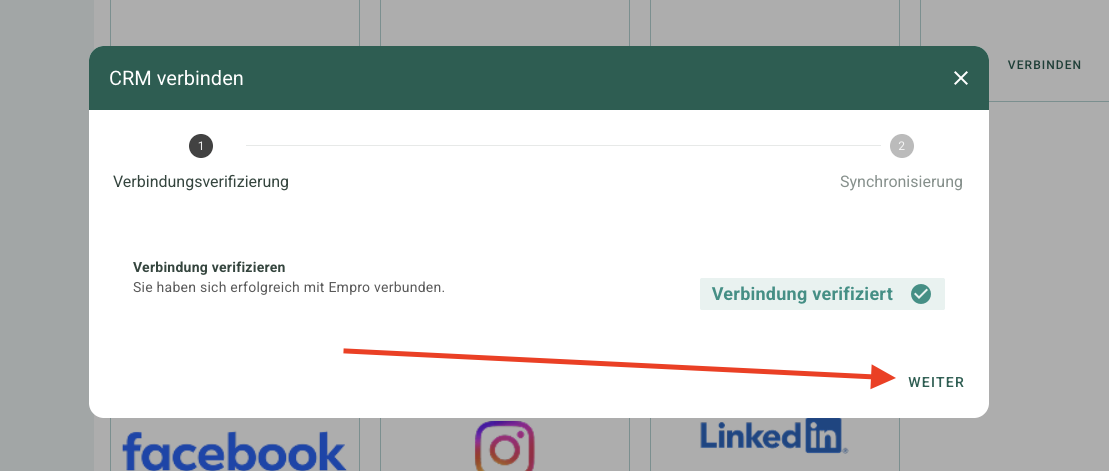
- After logging in, you will be automatically redirected back to Bottimmo.
The assistant will now display the message: - "Connection verified"Click on
4. Select synchronization mode
Now you determine how data is transferred between Bottimmo and Empro.
You have the following options:
- Manual export only
Contacts are transferred only upon request - Automatic export to CRM only
Contacts are automatically transferred from Bottimmo to Empro - Automatic import from CRM only
Contacts are automatically transferred from Empro to Bottimmo - Fully automatic import and export
Contacts are automatically synchronized in both directions
Select the appropriate option for your workflow.
5. Complete setup
- Click "Done"
The connection is now being set up.
A confirmation will appear in the assistant. - Close the assistant
Result
The connection between Empro and Bottimmo is now active.
Contact data can now be transferred according to your selected setting.
If you want to make changes, open the Connection Manager again.
ℹ️ Note: The Empro interface is available for all customers (Light, Basic, and Expert)
Which data is synchronized between BOTTIMMO and Empro?
When you connect BOTTIMMO with Empro, data is synchronized in both directions. This means: information from BOTTIMMO is stored in Empro, and existing data from Empro is transferred to BOTTIMMO. This keeps your data up to date in both systems.
1. Contact data from BOTTIMMO to Empro
BOTTIMMO creates contacts in Empro or adds missing information to existing contacts. The following data is transferred:
- First name
- Last name
- Email address
- Phone number and mobile number
- Address (street, ZIP code, city, country)
- GDPR consent (including date of consent)
- Contact source (platform name and lead ID from BOTTIMMO)
2. Activities and notes for each conversion
A conversion is an action performed by an interested contact, for example a valuation or an inquiry.
For each conversion, BOTTIMMO automatically creates a task or note in Empro. This includes:
- Title (platform name + landing page name)
- Date of the action
- Details about the specific action
The following conversion types are transferred:
- Property valuation
- Callback request
- Download (e.g. checklist or guide)
- Life annuity check
- Partial sale check
- Property search request
- Plot valuation
3. Data import from Empro to BOTTIMMO
Contacts from Empro are also imported into BOTTIMMO. To ensure high data quality, the following conditions must be met:
- GDPR consent is available
- An email address is present
If these conditions are met, the following data is imported (depending on availability):
- First name
- Last name
- Email address
- Phone number
- Address (street, city, ZIP code, country)
- Year of birth
- Tags (labels used to categorize the contact)
- GDPR consent
- External ID from Empro (used for clear identification)
4. Synchronization note
The synchronization ensures that your data stays up to date in both systems. Changes to contacts are automatically transferred when the conditions are met.
Data in Empro is not overwritten, only extended. BOTTIMMO does not delete any data in Empro.